Microsoft Teams has become an essential tool for modern organizations—offering a centralized platform to chat, meet, share files, and collaborate in real time. Whether you're working in the office, remotely, or across multiple time zones, Teams helps keep communication structured and projects moving forward.
In this guide, we'll walk you through how to use Microsoft Teams effectively, along with best practices to make the most of its powerful features.
What is Microsoft Teams?
Microsoft Teams is part of the Microsoft 365 suite and is designed to bring people, conversations, and content together in one place. It serves as a digital workspace where teams can collaborate through:
- Real-time chat
- Video and audio calls
- File sharing and editing
- Integrated apps and tools
From project planning to daily standups, Teams simplifies communication and enhances team productivity—especially in hybrid or remote environments.
Key Features of Microsoft Teams
Teams & Channels
Teams are created to organize workgroups, departments, or projects. Each team can have multiple channels to separate conversations and content by topic.
- Public or private teams depending on access needs
- Channels for focused discussions (e.g., #marketing, #product-launch)
Chat
Use Chat for direct messages or small group conversations. Features include:
- Text, image, and file sharing
- Emojis, GIFs, and reactions
- Integration with meetings and calendars
Meetings & Video Calls
Schedule or launch meetings directly from Teams. You'll get:
- HD video and audio conferencing
- Live captions and recording options
- Screen sharing and breakout rooms
File Sharing & Collaboration
Co-author documents in real time using Word, Excel, or PowerPoint—all within Teams.
- Files are stored securely via OneDrive or SharePoint
- Automatic version history and permission control
App Integrations
Customize your workspace by adding tools like:
- Planner for task management
- OneNote for shared notes
- Forms for polls and surveys
- Laserfiche for document management and workflow automation
- Hundreds of third-party apps
Why Integrate Laserfiche with Microsoft Teams?
Laserfiche allows users to store, manage, and retrieve important business documents directly within Teams. It provides:
- Secure document management
- Automated workflows for approvals and processing
- Fast access to records without leaving Teams
To integrate Laserfiche, go to Apps in Teams, search for "Laserfiche," and follow the setup instructions.
Getting Started with Teams
Step 1: Access Microsoft Teams
- Web: teams.microsoft.com
- Desktop/Mobile App: Download from the Microsoft 365 portal or app store
Step 2: Create or Join a Team
- Navigate to the Teams tab on the left sidebar
- Click “Join or create a team”
- Choose “Create a team”, then build from scratch or from an existing group
- Add members and set permissions (Private or Public)
- Create channels to organize topics or projects
Scheduling and Managing Meetings
To schedule a meeting:
- Go to the Calendar tab in Teams
- Click “New Meeting”
- Fill in details: title, date, time, attendees
- Customize settings such as waiting rooms, muting on entry, or recording
During the meeting, you can:
- Share your screen or application window
- Use live captions or whiteboards
- Record and share the meeting for later viewing
Collaborating on Files
In each channel, navigate to the Files tab to access shared documents. You can:
- Upload files from your device or OneDrive
- Create new documents directly in Teams
- Edit documents with team members in real time
All changes are automatically saved, and you can always revert to a previous version if needed.
Customizing with Tabs and Apps
Enhance your Teams experience by adding tabs at the top of a channel. For example:
- Add a Planner board for tracking tasks
- Link a OneNote notebook for team notes
- Embed a website or dashboard for quick reference
To add a tab:
- Click the "+" icon at the top of any channel
- Select the app or file you want to integrate
- Configure it to fit your workflow
Best Practices for Using Microsoft Teams
1. Use Clear Naming Conventions
Organize Teams and Channels with descriptive titles:
- Good:
Marketing_CampaignsorProject_X_Design - Avoid:
Team 1orGeneral Tasks
2. Communicate with Structure
- Use @mentions to notify specific individuals
- Start threads in Posts to group related messages
- Keep direct chats brief and focused
3. Maintain File Organization
- Standardize file names (e.g.,
2025_ProjectTimeline_v2.xlsx) - Keep folders tidy to avoid duplication or confusion
4. Manage Notifications
- Adjust alert settings to minimize distractions
- Mute inactive channels or chats
- Set quiet hours on mobile to maintain work-life balance
5. Monitor Security and Access
- Limit sensitive information to private channels
- Regularly review team member permissions
- Use Multi-Factor Authentication (MFA) for added protection
6. Train and Onboard Team Members
- Create a “Getting Started” channel with guides and videos
- Encourage adoption by sharing tips during meetings
- Offer refresher sessions as features evolve
Final Thoughts
Microsoft Teams can become the nerve center of your organization—empowering teams to work together, communicate clearly, and stay productive. With a thoughtful setup and these best practices in place, you’ll unlock its full potential and transform how your team collaborates.
after reading please complete this questionnaire
How to Use Microsoft Teams: A Practical Guide with Best Practices
Microsoft Teams has become an essential tool for modern organizations—offering a centralized platform to chat, meet, share files, and collaborate in real time. Whether you’re working in the office, remotely, or across multiple time zones, Teams helps keep communication structured and projects moving forward. In this guide, we’ll walk you through how to use Microsoft…
Read More
Announcement of Passing for Sister Theresa George-Dublin
With heavy hearts, we announce the passing of the beloved centenarian, Sister Theresa George-Dublin, affectionately known as “Mama,” mother of Sister Gerene Joseph, NCC Education Director.
Read More
The Forgive to Live Series in Tortola, BVI
A three-day series titled "Forgive to Live," was held in Tortola, British Virgin Islands on December 6- 8, 2024 by the Stewardship and Health Director of the North Caribbean Conference, Pastor Dr. Danny M. Philip. It was an enlightening and transformative experience that resonated deeply with all attendees. From the moment the event commenced, it was…
Read More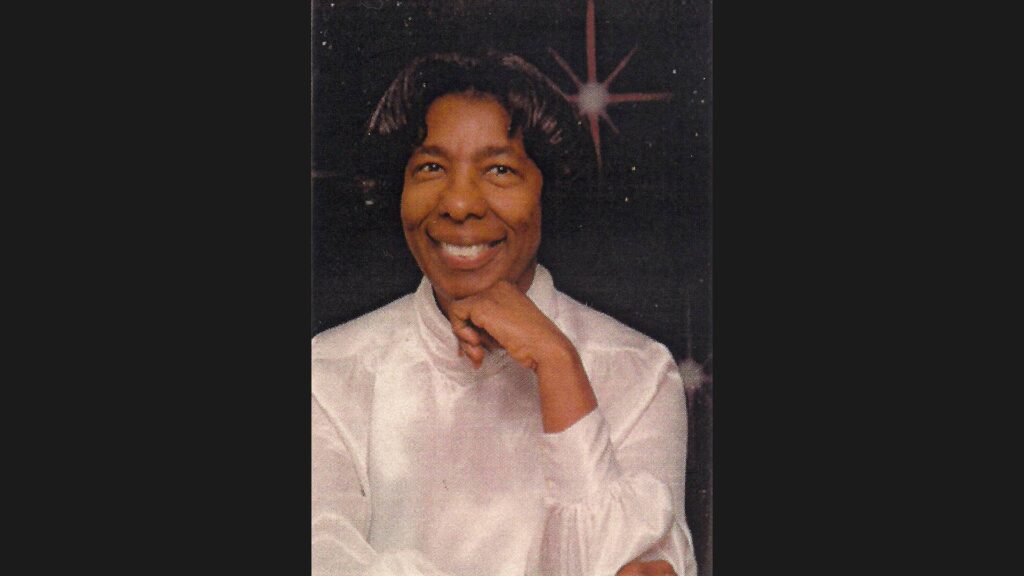
Passing of Phyllis Rogers
The North Caribbean Conference mourns the passing of the late Phyllis E Rogers (1939 – 2024), a beloved servant leader and the devoted wife of former Pastor, ABC Manager, and Auditor of the North Caribbean Conference, Pastor Campbell Rogers. Sis Phyllis Rogers exemplified a life of dedication, having given unstinting service to the work of…
Read More
BVI | MUSIC TEACHER
VACANT POSITION FOR MUSIC TEACHERBritish Virgin Islands Seventh-day Adventist School Applications are invited from suitably qualified persons to fill the vacant position of Music Teacher at the British Virgin Islands Seventh-day Adventist School for the 2024/2025 Academic year. Major Duties & Responsibilities Qualification and Experience Other Requirements: All applications must include a cover letter and…
Read More
BVI | Administrative Assistant
Position Summary: The Administrative Assistant works in harmony with the principal to ensure the smooth, and effective operation of the school. The orderliness and efficiency of the school’s Administrative Assistant will tell in the daily operation of the school. There are numerous functions to be performed by the administrative assistant. The school’s administration, the teachers,…
Read More
BVI | Business Manager
Position/Title: Business Manager Island: Tortola, British Virgin IslandsDepartment: Education Immediate Supervisor: PrincipalPosting Date: December 3, 2024 Starting Date: January 15, 2025 Position Summary: In consultation with the Principal, the business manager is responsible for the financial operation of the school. He/she is responsible for the basic systems of accounting and financial control. He/she is responsible…
Read More
Senior Youth Camp ’25
From July 24 to August 4, 2025, embark on a transformative Youth Camp inspired by the Red Sea miracle. Through engaging workshops, worship, and fellowship, discover God’s power, embrace obedience, celebrate victory, and begin a renewed journey of faith. Register now to take the first step toward your divine purpose.
Read More2024 Workers Meeting Presentations
PRESENTATIONS: TUESDAY, DECEMBER 03, 2024 PRESENTATIONS: WEDNESDAY, DECEMBER 04, 2024
Read More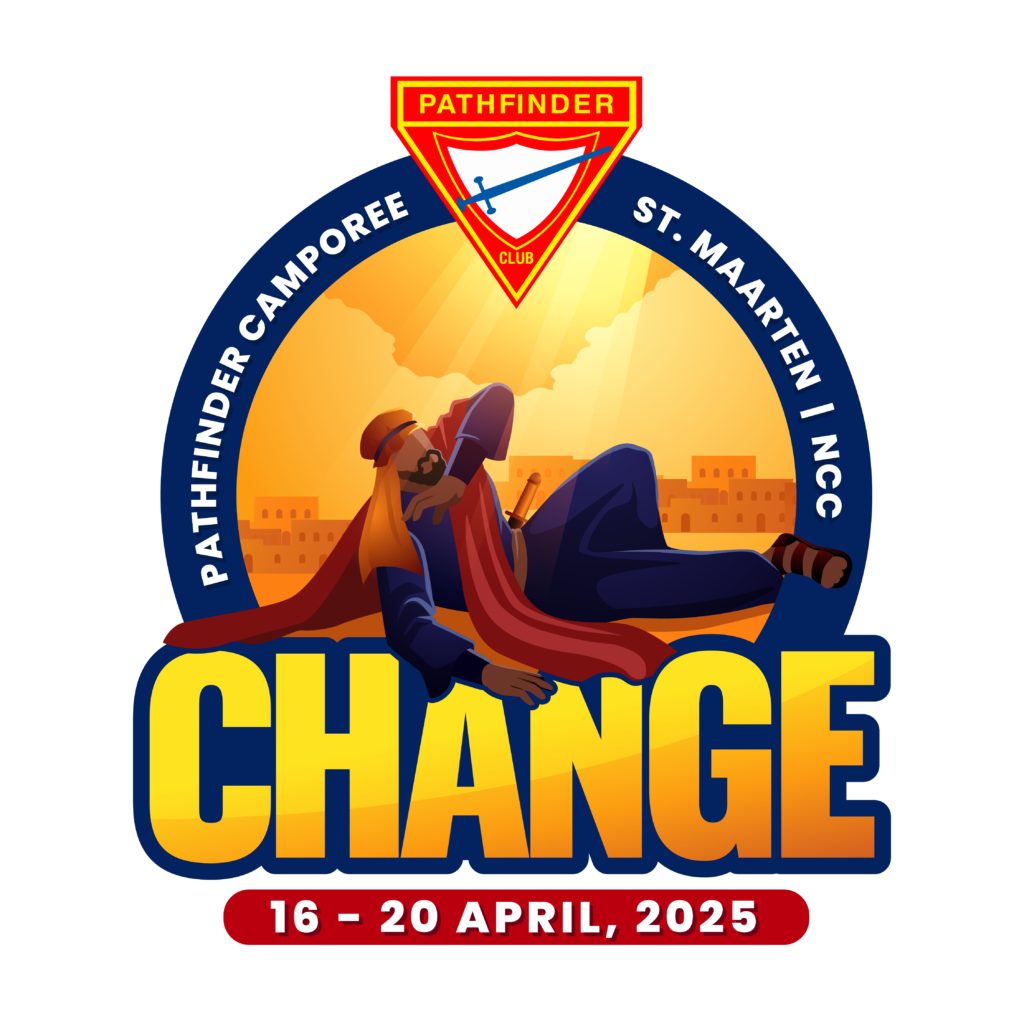
NCC Pathfinder Camporee
Register Today Days until camporee 16 – 20 April, 2025 St Maarten THEME SONG https://youtu.be/Z23Uow8kt8k?si=g9ODEvLW-z8cLufs promos https://northcaribbeanconference.org/wp-content/uploads/2024/12/change-pathfinder-camporee-V2.mp4https://northcaribbeanconference.org/wp-content/uploads/2024/10/9a08da25-9913-4333-a56b-627460a6e133.mp4 Welcome Desmond F. James President Seventh-day Adventist Church North Caribbean Conference Wilmoth James Executive Secretary Seventh-day Adventist Church North Caribbean Conference Sanida Mckenzie Treasurer Seventh-day Adventist Church North Caribbean Conference Leriano Webster Youth Ministries Director Seventh-day Adventist Church…
Read More